Why I built this side project
In my previous job, our team often ordered lunch from external vendors, many of which had certain requirements—such as a minimum order amount or a required number of items for delivery. Because of these conditions, the person responsible for lunch orders had to collect everyone’s requests before placing the final order.
All colleagues submitted their orders through Slack messages, which not only consumed unnecessary time and effort but also occasionally led to errors, such as mismatched item counts.
This side project aims to reduce the manual workload involved in collecting and summarizing lunch orders, making the process more efficient and less prone to mistakes.
The project uses Bolt for Python to build a Slack app running in Socket Mode, which offers serveral advantages: no need for a fixed external IP, no domain name required, and no need for a valid SSL certificate, among others.
Demo
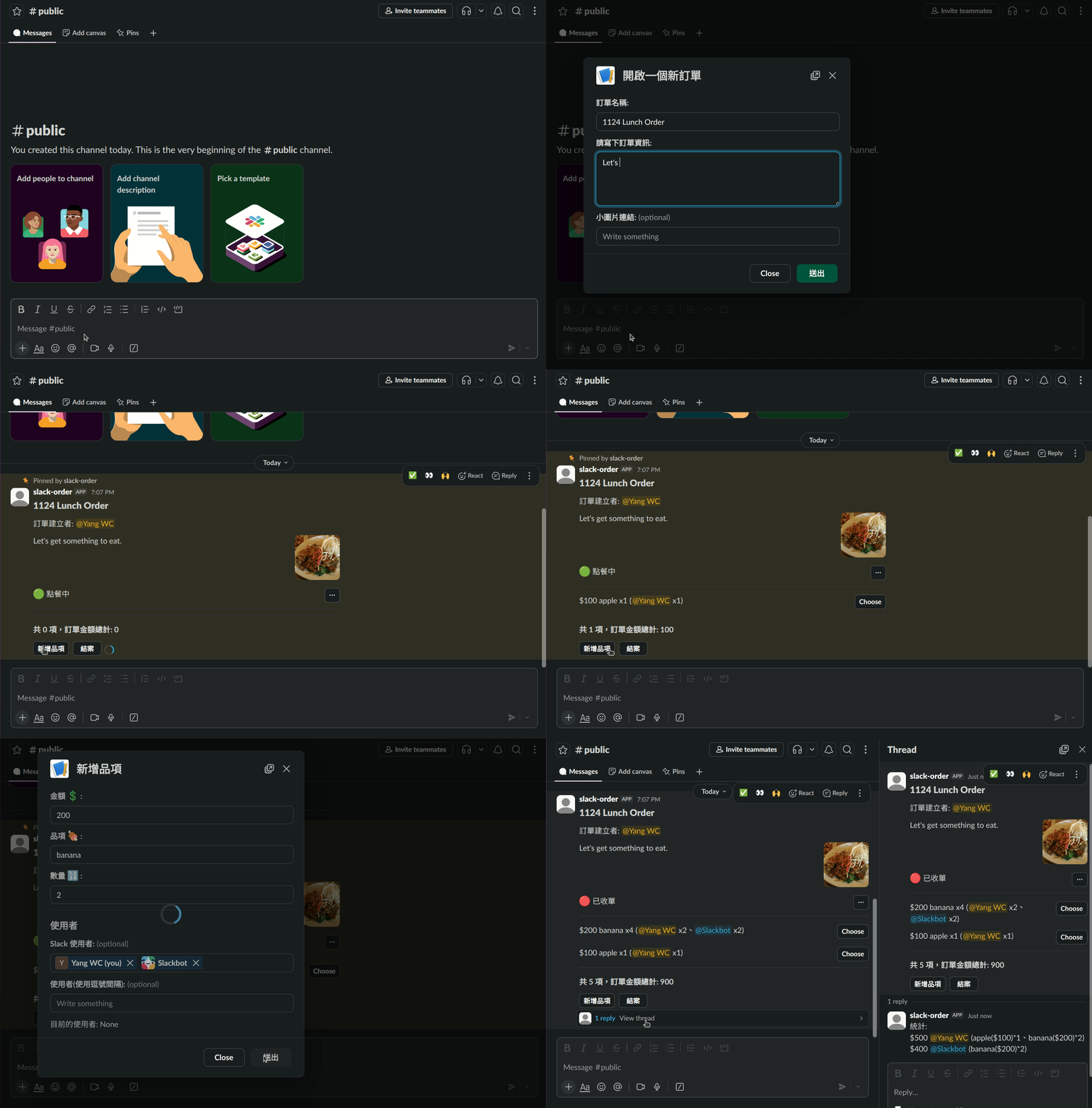
Caveat
- This project uses Socket Mode, which means your app cannot be distributed on the Slack Marketplace. It is intended for internal company use or private workspaces.
- If two instances of this app run at the same time, the earlier one will be disconnected. When using Docker Compose with
restart: always, both instances may repeatedly restart, potentially causing feature malfunctions.
Set up Slack app from scratch
You can also use a manifest file to create the Slack app directly, See Create your app from a manifest
- Create your Slack app
- Choose From scratch when creating the app.
- After creation, you will land on the app’s Basic Information page. Your can also access it later through Your Appshttps://api.slack.com/apps.
- Enable Socket Mode and create an App-Level Token
- In the left navigation panel, open Socket Mode, then turn on Enable Socket Mode. Slack will guide you to create an App-Level Token with the required scopes.
- After the token is created, copy it — it should start with
xapp-.
- Set up the Slash Command
- In the left navigation panel, go to Slash Commands, then click Create New Command. Fill in the following fields:
- Command:
/order - Short Description:
Open Lunch Order
- Command:
- In the left navigation panel, go to Slash Commands, then click Create New Command. Fill in the following fields:
- Configure Bot Token Scopes
- Go to OAuth & Permissions, scroll to the Scopes section, and under Bot Token Scopes, add the following:
commands— automatically added when you created the slash commandchat:write— required for posting messagespins:write— used to pin messages triggered by the/ordercommand
- Go to OAuth & Permissions, scroll to the Scopes section, and under Bot Token Scopes, add the following:
- Install the Slack App to your workspace
- Navigate to Install App, then click
Install to {Your Workspace}. - After installation, you will receive a Bot User OAuth Token, which starts with
xoxb-. Copy this token.
- Navigate to Install App, then click
- Add the Slack App to a specific channel
- Open your slack
- Right-click the target Slack channel and select View channel details
- Open the Integrations tab
- Click Add an App, then choose the Slack app you just created
Create your app from a manifest
- Create your Slack app: Use from a manifest when creating your Slack appand paste the JSON manifest provided.
- After creating the app, you still need to:
- Install it to your workspace
- Add the app to the desired Slack channel
{
    "display_information": {
        "name": "slack-order"
    },
    "features": {
        "bot_user": {
            "display_name": "slack-order",
            "always_online": false
        },
        "slash_commands": [
            {
                "command": "/order",
                "description": "開啟午餐訂單",
                "should_escape": false
            }
        ]
    },
    "oauth_config": {
        "scopes": {
            "bot": [
                "chat:write",
                "commands",
                "pins:write"
            ]
        }
    },
    "settings": {
        "interactivity": {
            "is_enabled": true
        },
        "org_deploy_enabled": false,
        "socket_mode_enabled": true,
        "token_rotation_enabled": false
    }
}
Run the Slack App
- This app runs via Docker Compose, so make sure your host machine has Docker Engine installed.
- Clone the project:
git clone https://github.com/WCYa/slack-order.git
- Copy the example environment file:
cd slack-order
cp env_template .env
- Edit
.envand add the following tokens:- SLACK_APP_TOKEN=‘xapp-…’
- SLACK_BOT_TOKEN=‘xoxb-…’
- Start the app using Docker Compose:
docker compose up
# or run container in background
docker compose up -d